To access your facility access portal to scan in membership cards you can navigate to the Member Check-In link located in your quick utilities box or by clicking membership card scan in your memberships dropdown menu.
It is also possible to add an icon that takes you directly to your facility access portal alongside your other management side navigation icons. If you would like a facility access portal icon added to the top of your management dashboard, please speak with your Onboarding Specialist or Client Support who can add that additional icon for you.
Additional resources on Memberships can be found in our Knowledge Base.
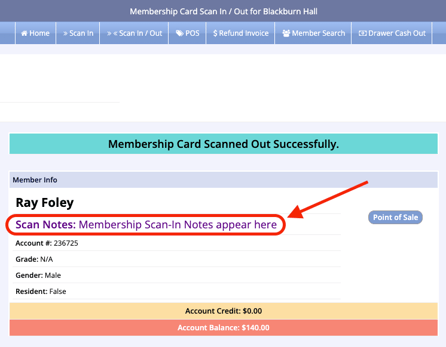
Scan-In Notes: Under a Member's Profile, a management side user can add Scan-In notes that will populate when a member scans their membership card. These notes can serve as a reminder for any variety of things, but it is important to note that scan-in notes populate on the screen in a way that may be visible for other members of the public.
Below is an example of how Scan-In Notes appear. Steps on where Scan-In notes can be entered was covered in a previous MyRec.com Academy Video: Membership Card Numbers, Member Photos, & Scan-In Notes.